Record on your terms
Opening a meeting never starts recording. Start and stop explicitly. Meeting microphone audio is included only when its unmuted state is detected.
 Meeting Voice
FOR GOOGLE MEET & JITSI
Stay in the conversation. Record meeting audio when you choose, capture timed notes, and turn it into something useful later.
Free today · MIT licensed · Chrome 116+
Available on the Chrome Web Store.
LESS FRICTION. MORE CONTEXT.
Opening a meeting never starts recording. Start and stop explicitly. Meeting microphone audio is included only when its unmuted state is detected.
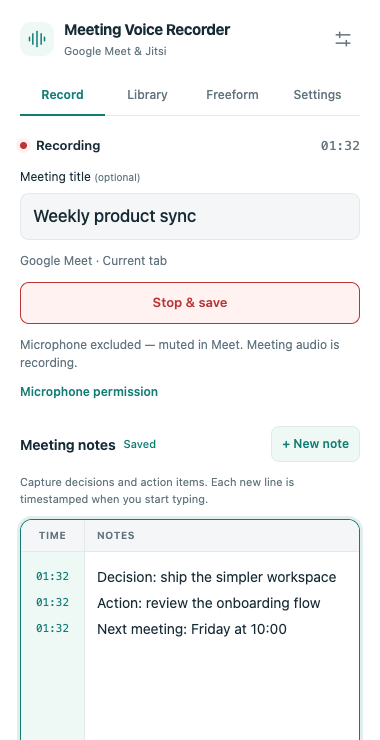
Name the meeting before or during recording. Write notes with timestamps and find audio, notes, transcripts, and summaries together in your Library.
Download a conventional WAV file, or enable smaller numbered parts in Settings. Import existing audio. Optionally use Google Speech or Gemini with your own API keys.
A DELIBERATE START
Recording happens in your browser. Ask participants for permission and follow your organization’s recording rules.
Click the extension icon on your Google Meet or Jitsi tab to open the workspace.
Add a title, press Start recording, and take notes as the conversation unfolds.
Stop & save, open the Library, and download the audio. AI processing is optional and asks before sending data to a provider.
FREE FOR NOW
No extension subscription is required today. Optional paid features or services may be introduced in the future, with changes clearly announced. External AI providers may charge separately for API use.
GOOD TO KNOW
Recordings and notes stay in this Chrome profile’s local extension storage. They are not automatically uploaded. AI actions send selected audio, notes, or transcripts directly to the provider you confirm. Export important meetings: local storage is not a backup.
For meeting recording, the microphone is gated out while the meeting reports muted. If the extension cannot detect a trustworthy unmuted state, it excludes microphone audio. Meeting-tab audio is still recorded. Freeform microphone recording is separate and is not tied to meeting mute controls.
Closing the meeting tab attempts to finalize a partial recording. Closing the workspace does not stop meeting recording. After browser interruption, restarting can recover already-written chunks, but a complete playable file and the last unsaved audio are not guaranteed. Prefer Stop & save and export important recordings.
Enable multipart audio downloads in Settings to save chronological, 10-minute mono WAV files, approximately 19.2 MB each. Upload the files in order and ask for per-part transcripts, then a combined summary. File and audio support varies by service, account, and mode: smaller files do not guarantee acceptance. Gemini audio uploads are a supported workflow; check the receiving service’s current requirements.
Not for local recording, notes, playback, imports, or downloads. The extension’s optional transcription and summary actions use your own configured provider API keys. An AI website subscription does not necessarily include API access. Default meeting-minutes instructions request Persian and can be edited in Settings.
The extension is MIT licensed. For support or to report a reproducible problem, email mohammad.toot@gmail.com with your Chrome version, extension version, and the steps that caused the issue. Do not send private meeting audio, participant details, or API keys.